How Do You Log in to KOBIL Portal?
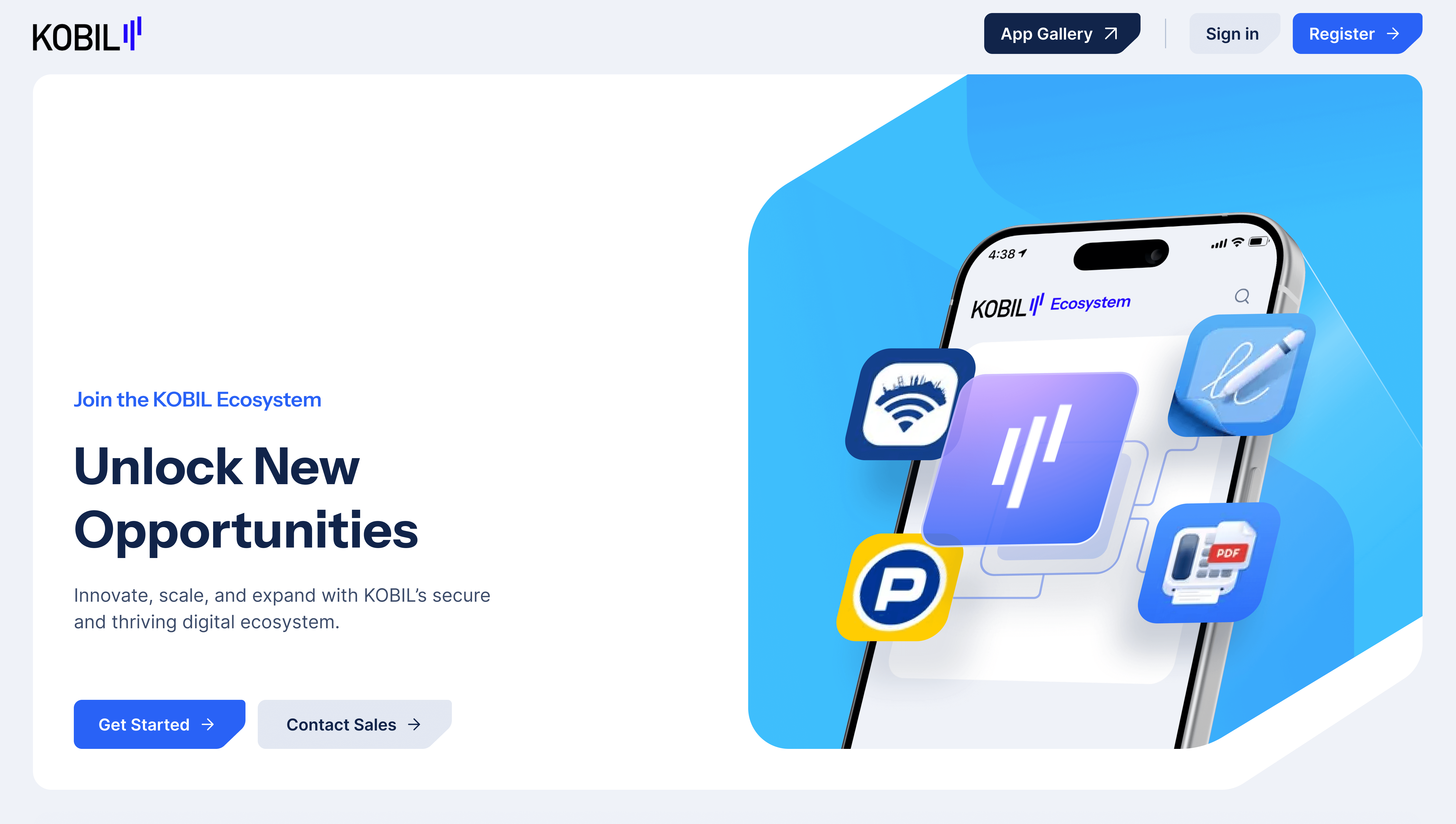
Step 1: Accessing the KOBIL Cloud Home Page
- Navigate to https://cloud.kobil.com
- Click the “Sign In” button at the top of the page.
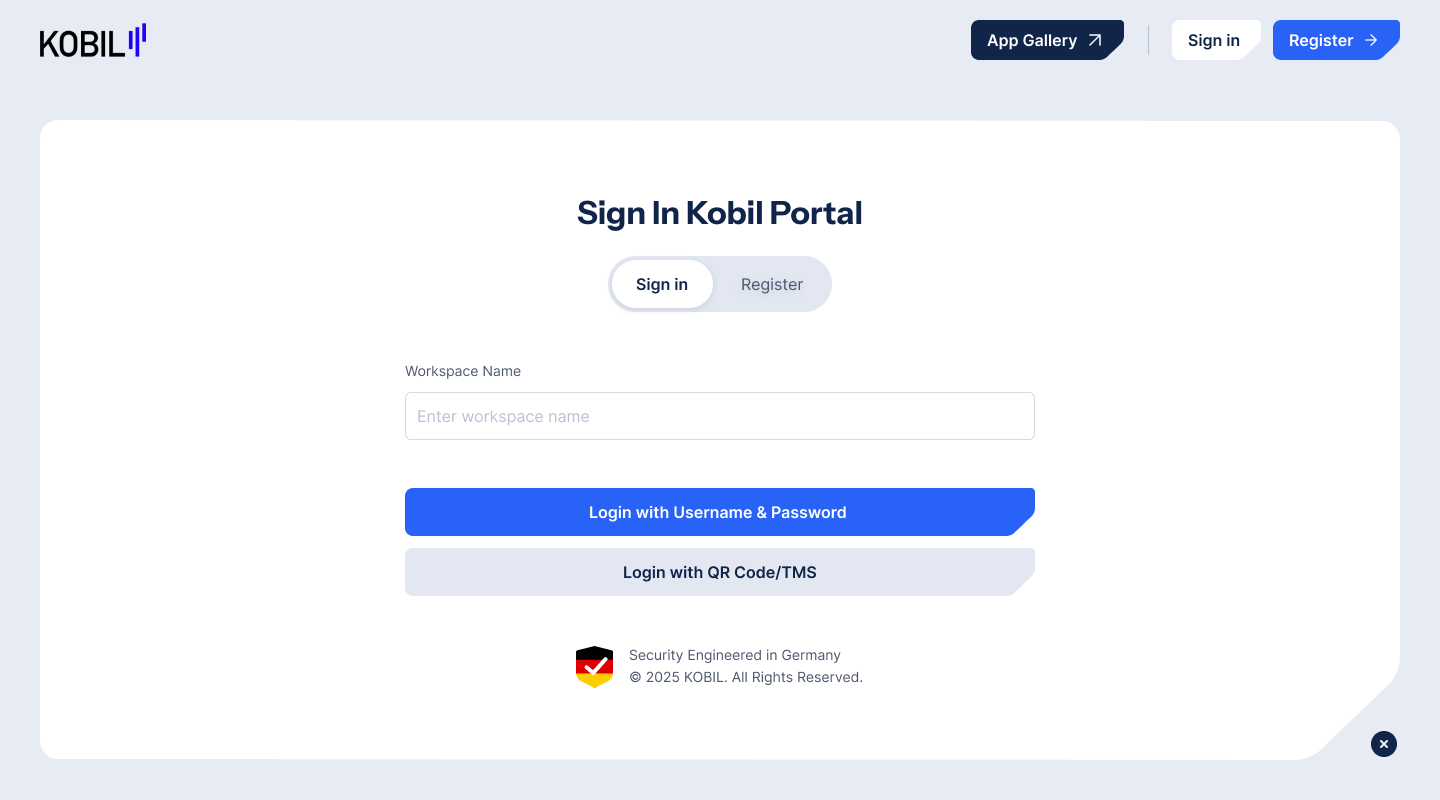
Step 2: Logging In to Your Workspace
- Enter your Workspace Name (the tenant name used during registration).
- Click “Login” to proceed.
- Choose your preferred login method:
- Login with Username / Password, or
- Login with QR Code / TMS.
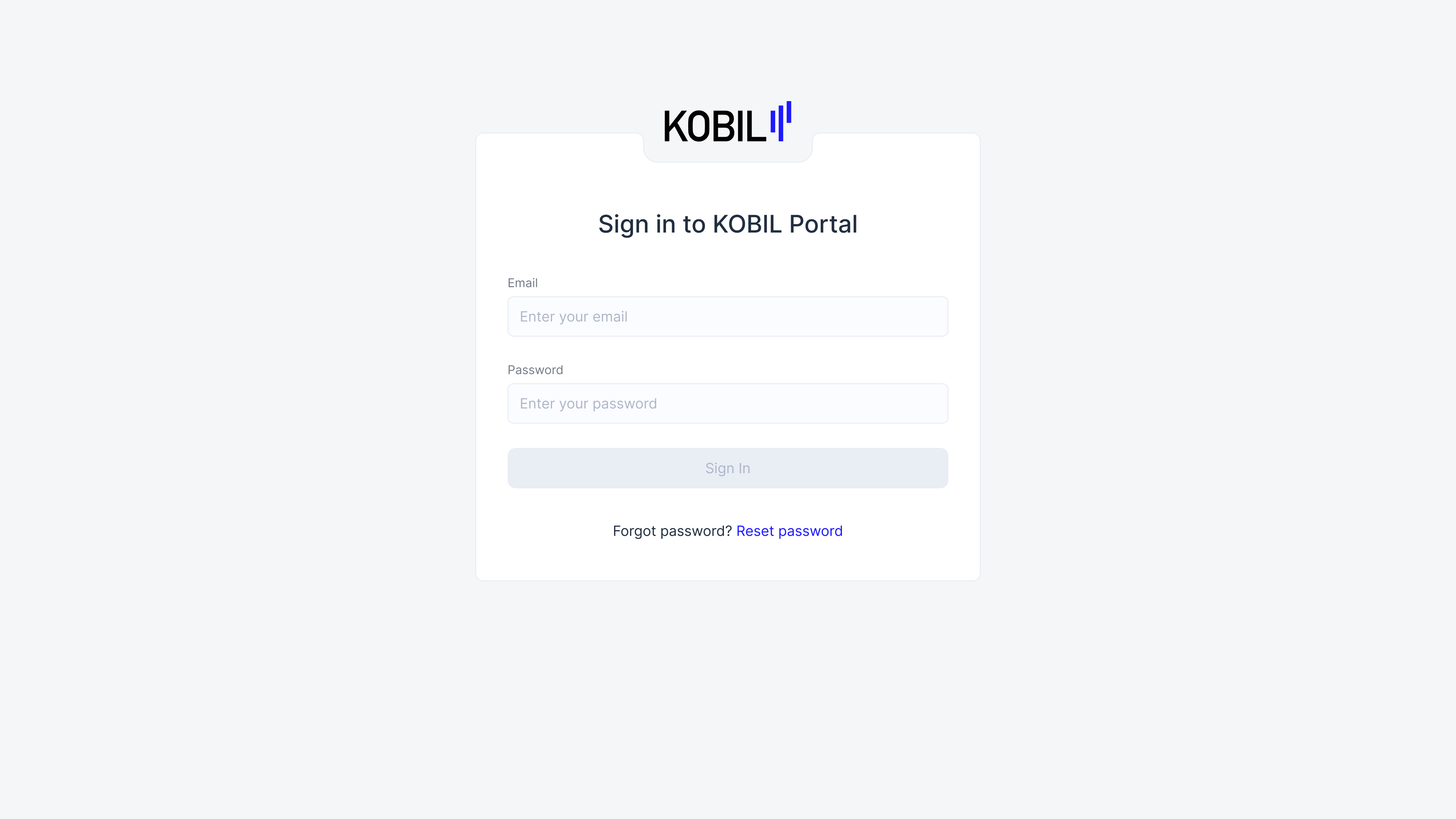
Step 3: Login with Username & Password
- On the next screen, enter the email address associated with your workspace.
- Enter your password for that account.
- Click “Sign In” to access the Portal.
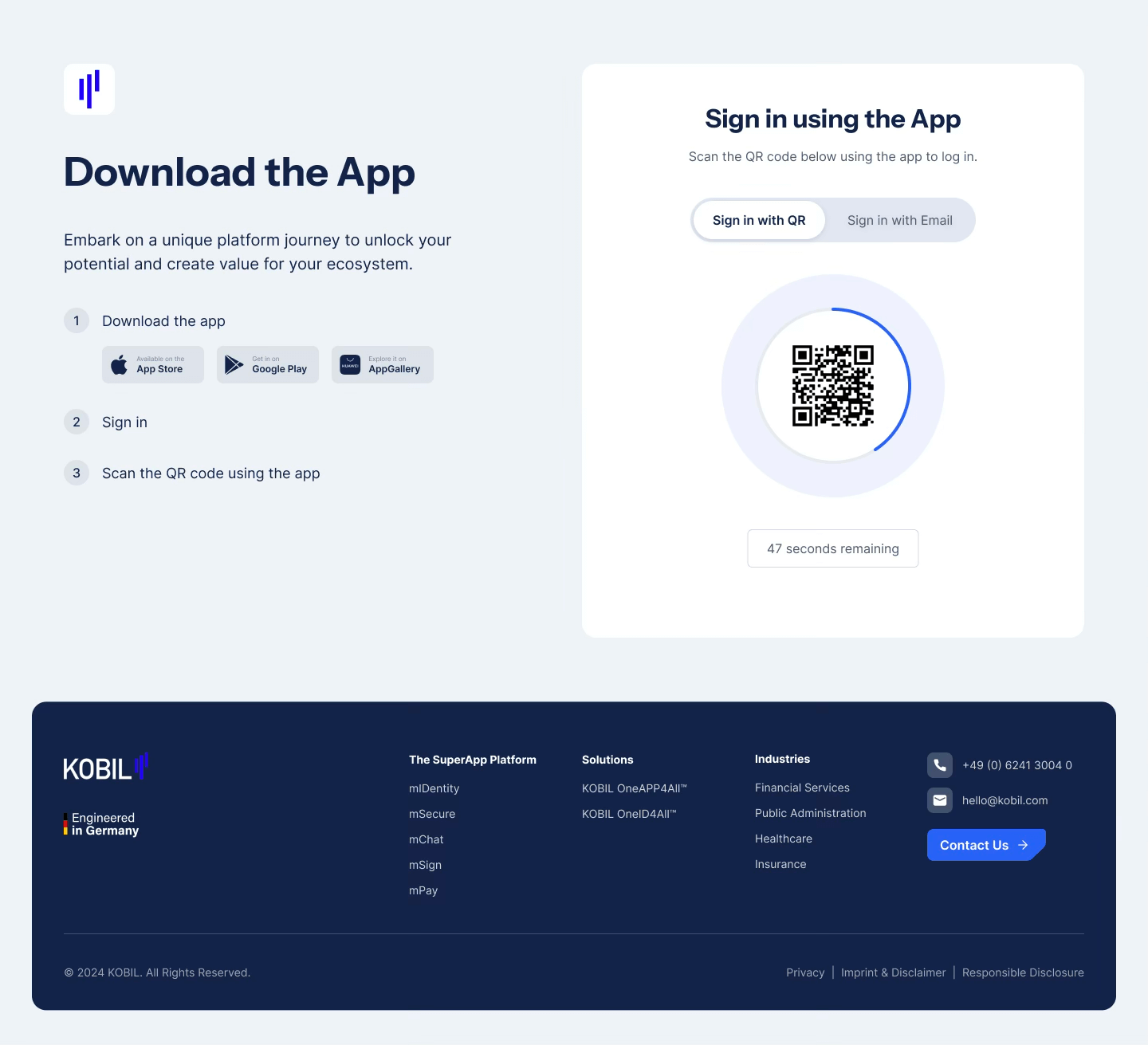
Step 4: Login with QR Code / TMS
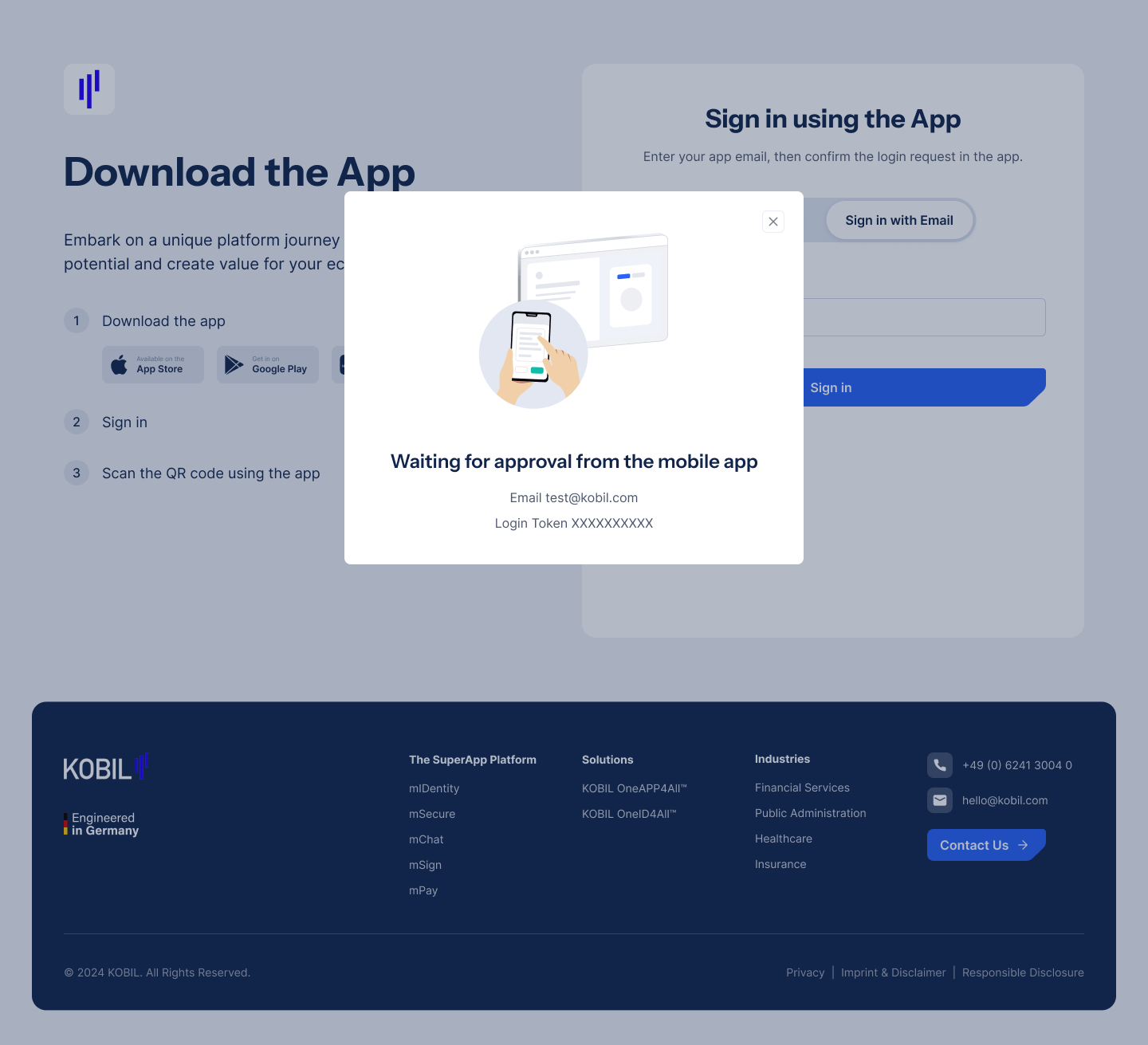
- On the next screen, choose one of the following options:
- Option 1: Scan the QR Code displayed on the screen using your workspace’s app.
- Option 2: Enter the email address associated with your workspace and open your workspace’s app to approve the login request.
- Once approved, you will be automatically logged into the Portal.
Step 5: Successful Authentication
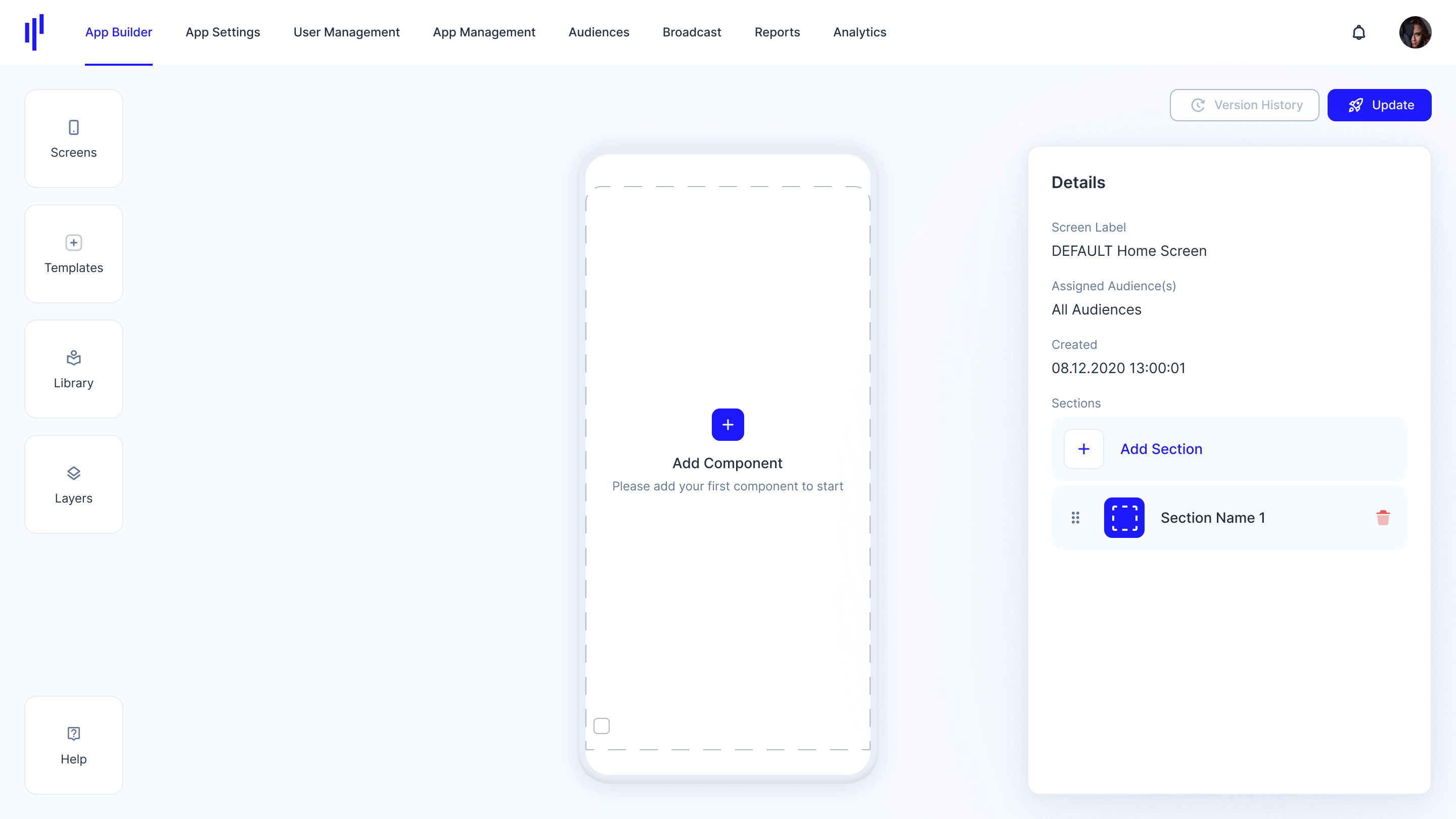
- After successful authentication, you will be automatically redirected to the KOBIL Portal.
- The Default Home Screen will be displayed upon login.